Thursday, February 9, 2012

Valentine’s Day Gift Idea-Burn DVD for Valentine’s Day Gift

Valentine's Day is getting closer and closer and you have been thinking about Valentine’s Day gift ideas-how to get romantic gifts for Valentine’s Day? You can never go wrong with jewelry like necklaces, rings, pendants, earrings, bracelets, chains. Another romantic Valentine’s Day gift idea could be going out for burning your own DVD that would be unforgettable for him or her. Using profession DVD creator software to make/burn your love DVD as a personal love confession is better than the hand-made gift.

Burn DVD with your love video clips from HD camcorder you recorded before or from YouTube you download or from your video collections and with your lover’s favorite song or a dialog you’ve recorded added as the background audio.

For burning a high-quality DVD with more practical and useful DVD creating features, I recommend Aneesoft DVD Creator. It can burn almost all videos to DVD disc like AVCHD (camcorder), AVI, MP4, WMV, MKV, MOV, MPEG, FLV, VOB etc. You needn't make video conversion before burning them to DVD. What’s more, this DVD creator is built in video editing tool which allows you to crop for removing the unwanted parts, trim video to save your favorite clips, add text/ image watermark or add special effects to make your videos very personalized and more.

Burn your love DVD for Valentine’s Day gift

After lunching the DVD creator software, click the “Add” button to load video files for creating, and select the video you want to edit, such as trimming, cropping, applying effect, adding watermark etc.


This DVD creator’s “Menu” is a good way to express your love. You are allowed to add background image or your couple photos to decorate your DVD menu by pressing "Background". Also, you can write your love words to your lover by clicking "Text". What's more, you can use the song he or she loves the most as the background music by pressing "Add Music" and you can edit the audio, such as trimming, fading in/out etc. It’s sure that the burned DVD will be impressive when she or he saw it.


After all is done, get to start burning Valentine's Day DVD.

The last but not the least is to remember to wrap your love DVD with a nice package and lovely words. I believe burn your love DVD for Valentine's Day gift absolutely will be a romantic gift idea and absolutely will surprise her.

Other Valentine's Day gift idea:

Make Valentine's Day flash photo gallery

Read more...

Wednesday, February 1, 2012

Play 720p video on iPad

Can iPad play 720P videos? With maximum screen resolution 1024×768 pixels and 4:3 ratios, iPad can play 720P video in H.264 or MPEG-4 or M-JPEG format. To play any 720p video on iPad, sometimes we need to convert unsupported video files to iPad format in 720P.Then how to convert video to iPad 720P video? It can be done by Aneesoft iPad Video Converter easily and quickly. See the following steps.


Step 1: Load video files into the program

Click “Add File” to load videos that you want to play on iPad. You can load almost all videos, such as AVCHD, 1080p videos, HD videos and SD videos.

Step 2: Set output options for iPad

To play 720p video on iPad, click the “Profile” drop down list, and select “iPad 720P H.264 Video(*.mp4)” as output. Also you can click “Customize video settings” icon to set best settings for the output video quality, such as codec, bit rate, frame rate, sample rate, channel. Of course you can freely set the output path.

Step 3: Start converting videos to iPad 720P

When all your need settings are done, click “Start” button to start videos to iPad 720P conversions.

After the conversion is completed, you can sync the converted videos to my iPad via iTunes. Then, you can play the 720p video on iPad for joy.

Tips: besides converting videos to iPad 720p video, Aneesoft iPad video converter also provides easy video editing functions, such as merge video files, trim segments of video, crop video screen size and aspect ratio, add watermark, apply effect, set contrast and brightness and more.

Related articles:
iPad 3 VS iPad 2
Top iOS apps for iPad
Use built-in YouTube app for iPad and download YouTube videos to iPad
Top 10 best Christmas iPad games for holiday season 2011
Best Christmas movies for iPad 2010

Read more...

Thursday, January 12, 2012

Enjoy DVD movies on Kindle Fire

Wish to watch DVD movies on Kindle Fire? But have no thought how to convert DVD to Kindle Fire or what is the best DVD Ripper for Kindle Fire? Aneesoft DVD to Kindle Fire Converter is the top 1 downloads and is your best choice now to convert rip DVD movies to Kindle Fire formats.


Aneesoft DVD to Kindle Fire Converter is a stable DVD Ripper that can quickly, easily help you rip DVD movies to Kindle Fire formats with excellent quality.  This DVD ripper for Kindle Fire supports DVD editing, such as trim DVD segments, crop area size of the video, crop aspect ratio, set brightness/contrast/effect of the video, add text/image watermark and so on.

Aneesoft DVD to Kindle Fire Converter has been the top 1 DVD converter software for the purpose to rip DVD to Kindle Fire video format such as MPEG-4, H.264 on Windows or Mac OS X(Lion 10.7 included), you can also convert DVD to avi, mpg, wmv, mov, asf, 3gp, vob, mp4 etc.The DVD ripper software makes it possible to get your favorite DVDs to Kindle Fire without having to carry DVD disc on travel.
How to convert DVD to Kindle Fire with Aneesoft DVD to Kindle Fire Converter?
Quick guide: convert DVD movies onto Kindle Fire


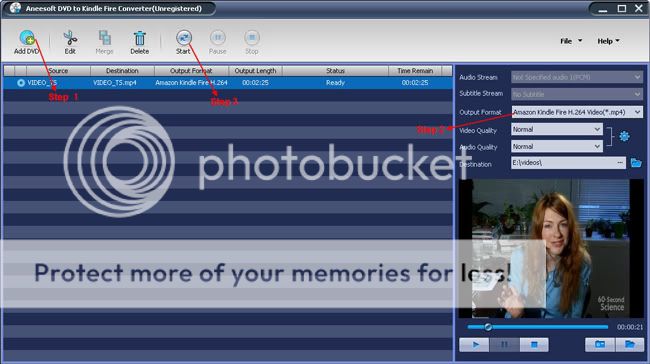
Step 1: Place your DVD to computer. Start the DVD to Kindle Fire Converter software. Load DVD to the program. You can preview the movie and snapshot your favorite still images. Also, you can edit the movie as you wish to make your own movie, such as trim, crop, add watermark, set effect/brightness/contrast, deinterlace etc. All these are up to you!

Step 2: Choose Amazon Kindle Fire H.264 video(*.mp4) or Amazon Kindle Fire MPEG-4 video(*.mp4) or Amazon Kindle Fire (720p) H.264 video(*.mp4) or Amazon Kindle Fire (1080p) H.264 video(*.mp4) as Profile. Also, you can set the output quality for your Kindle Fire by pressing the Setting button to adjust the parameters of resolution, bit rate, frame rate, sample rate, and channel!

Step 3: Start conversion. Hit the Start button to convert DVD to Kindle Fire.
Now you have learned how to convert DVD to Kindle Fire on Windows or Mac, and now you can enjoy DVD movies on Kindle Fire wherever you go!

You may also like:

Top free apps for Kindle Fire
Watch 1080P/720P HD videos on Kindle Fire
What is Kindle Fire supported formats
How to play VOB videos on Kindle Fire

Read more...

Monday, January 9, 2012

Play AVCHD (MTS/M2TS) onto Amazon Kindle Fire

You got an AVCHD camcorder such as Panasonic HDC-SD9, Sony Handycam HDR-CX550V, Canon Vixia HF S21, Canon HF10, Sanyo Xacti, JVC GZ-HD 10 etc.? It’s a straightforward way to create AVCHD MTS/M2TS files with these HD camcorders.

The brand new Amazon Kindle Fire, iPad’s top rival, comes with a 7" multi-touch gorilla glass display with IPS technology to provide an extra wide viewing angle, making watch videos with a resolution of 1024*600 and a vivid experience.

Kindle Fire is an ideal devices to playback the AVCHD videos! Unfortunately we cannot directly import AVCHD videos to Kindle Fire because it only supports MP4 and VP8 video files. To perfectly playback AVCHD videos on Kindle Fire, we should convert AVCHD to Kindle Fire MP4 with first.


Best solution to fast play AVCHD videos on Kindle Fire


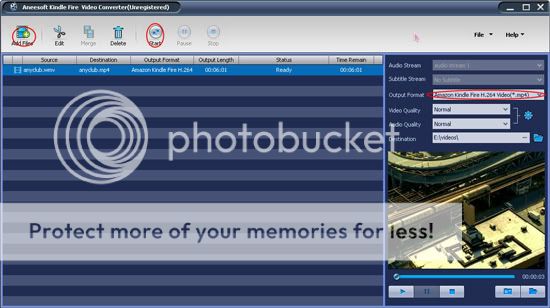
Step 1: Run the installed AVCHD to Kindle Fire program; hit the "Add Files" button to import the AVCHD videos from camcorder.

Step 2: Choose Amazon Kindle Fire H.264 video(*.mp4) or Amazon Kindle Fire MPEG-4 video(*.mp4) or Amazon Kindle Fire (720p) H.264 video(*.mp4) or Amazon Kindle Fire (1080p) H.264 video(*.mp4) as output format. If you wanna edit the video files to make your own creative movie, click the “Edit” button and click the “Setting” button to adjust video and audio parameters for the output video.

Step 3: Click the "Start" button to start converting AVCHD videos to Kindle Fire MP4. After that, connect Kindle Fire to your computer, then transfer the converted AVCHD videos to Kindle Fire for playback.

Read more...

Tuesday, December 27, 2011

Play AVI videos on HP TouchPad in three steps

Aneesoft Christmas deals of 30% OFF StoreWide Sale is online, the coupon code is 45K2D469FV, for all the products!

If you have lots of AVI files that couldn't be played back on TouchPad and want to watch them on the web OS Slate, just try Aneesoft Video Converter Pro. Here I'll show you how to convert AVI to TouchPad supported video formats for watching on the TouchPad step-by-step.

Things you'll need

1. Aneesoft Video Converter Pro (Free for download trial version)
2. AVI video files

Step 1: Run Aneesoft AVI to TouchPad Video Converter and add AVI video file

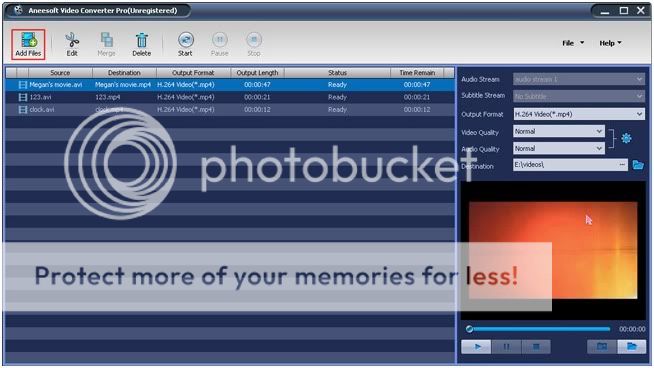
To be started, we need to download the very nice Aneesoft Video Converter Pro, and then install it to your computer. After launching Aneesoft Video Converter Pro, you can add AVI files by clicking the button "Add..." on the top left side. You're able to convert multiple AVI files to TouchPad supports video formats at once with Aneesoft video converter Pro.


Step 2: Convert AVI to TouchPad supports video formats

In this step you may set the output video format for converting AVI for TouchPad. Aneesoft Video Converter Pro gives you a lot of options. Here I choose " MP4-MPEG-4 Video File(* .mp4) as the output video format.


Step 3: Start converting AVI to TouchPad supports video formats

After simply click on the button "Start", the conversion of AVI to TouchPad begins. The converting time mostly depends on the bitrate you have set, what other things your computer currently doing and the speed of your computer in itself.

Tips:
The Aneesoft Christmas deals 30% off will be expired on Dec.31th, 2011, so please hurry up! More information of Aneesoft Christmas Offer-30% OFF StoreWide Sale here: http://www.aneesoft.com/special-offer.html

Read more...

Monday, December 19, 2011

Play AVI videos on HP TouchPad in three steps

Aneesoft Christmas deals of 30% OFF StoreWide Sale is online, the coupon code is 45K2D469FV, for all the products!

If you have lots of AVI files that couldn't be played back on TouchPad and want to watch them on the web OS Slate, just try Aneesoft Video Converter Pro. Here I'll show you how to convert AVI to TouchPad supported video formats for watching on the TouchPad step-by-step.

Things you'll need

1. Aneesoft Video Converter Pro (Free for download trial version)
2. AVI video files 

Step 1: Run Aneesoft AVI to TouchPad Video Converter and add AVI video file

To be started, we need to download the very nice Aneesoft Video Converter Pro, and then install it to your computer. After launching Aneesoft Video Converter Pro, you can add AVI files by clicking the button "Add..." on the top left side. You're able to convert multiple AVI files to TouchPad supports video formats at once with Aneesoft video converter Pro.


Step 2: Convert AVI to TouchPad supports video formats

In this step you may set the output video format for converting AVI for TouchPad. Aneesoft Video Converter Pro gives you a lot of options. Here I choose " MP4-MPEG-4 Video File(* .mp4) as the output video format.


Step 3: Start converting AVI to TouchPad supports video formats

After simply click on the button "Start", the conversion of AVI to TouchPad begins. The converting time mostly depends on the bitrate you have set, what other things your computer currently doing and the speed of your computer in itself.

Tips:
The Aneesoft Christmas deals 30% off will be expired on Dec.31th, 2011, so please hurry up! More information of Aneesoft Christmas Offer-30% OFF StoreWide Sale here: http://www.aneesoft.com/special-offer.html

Read more...

Wednesday, May 4, 2011

How to put Sony HD videos onto ipad2


iPad 2 is a beautiful 9.7-inch high-resolution display which similar to its former iPad2, it is more thinner and lighter than the first model and also have more memory and a more powerful graphics processor. Thus, smarter iPad 2 makes it much more convenient for carrying around when on traveling, flighting or on a train.

But if we want to put Sony HD videos onto iPad2 for playback or for editing, what shall we do? One of the best solutions is to convert Sony AVCHD videos to iPad2 compatible formats. Therefore, to find a good Video Converter is very important. In this article, I’ll recommend you one of the best Video Converter – Aneesoft iPad2 Video Converter. Read on to learn the step-by-step guides for converting Sony HD videos to iPad2 formats using Aneesoft iPad2 Video Converter.

Step-by-Step Tutorial for Aneesoft iPad 2 Video Converter

Step 1: Download & install Aneesoft to ipad2 Converter
Download the free trial version of Aneesoft iPad2 Video Converter. Next step is to install this software.
Step 2: Run Aneesoft iPad2 Video Converter and add Sony HD videos

Now run Aneesoft iPad2 Video Converter and click the big button "Add..." to add Sony HD videos.


Step 3: Edit Sony HD videos: trim, crop, add effect, add watermark

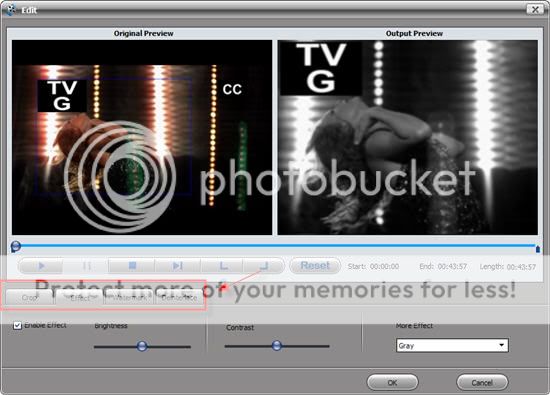
Wanna to edit your videos to make it more personalized? To add a watermark with Aneesoft iPad2 Video Converter, just select the title you'd like to add watermark, then click the button 'Edit' to launch video editing window. If you want to crop video or add some special effects, click the first two tabs “Crop” “Effect”.

Step 4: Change the output settings before convert Sony HD videos to iPad2

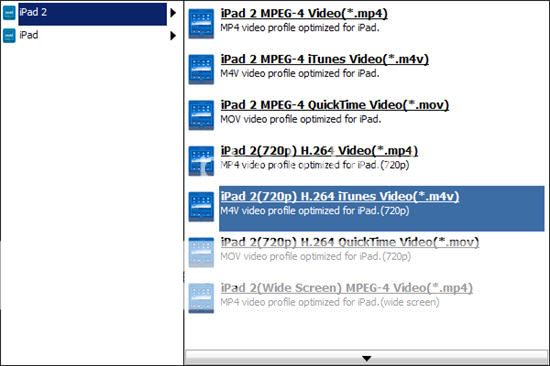
You'll find a wide range of preset video setting options available for Apple iPad2. You may select "iPad2 (720P) H.264 iTunes Video (*.m4v)" for converting Sony HD videos to iPad2 supported videos. Remember that the output file size and converting speed mostly depends on the Bitrates you set. Larger Bit rate, larger file size and longer conversion time.

Step 5: Start converting movies to iPad2 video format
Now you may click the big button "Start" to begin converting Sony HD videos to iPad2 video files. Once the conversion is complete, Aneesoft iPad2 Video Converter will place on your Desktop a new iPad2 format version of your video that will play on the iPad2. Double-click the new file and play it to make sure it looks as you expect.
Tips & Tricks
Tips 1: With batch conversion supported, you can append many tasks at one time and iPad Video Converter will convert them one by one for saving your time.
Tips 2: You can preview the video by selecting the video and clicking Play in the preview pane. You can also take snapshot and save them as jpg, bmp file while preview.
Tips 3: Join multiple video files into one by clicking "Merge" in Source Setup section. You need select the files first in the source list.
Tips 4: To put the converted video to your iPod or iPhone, you must have QuickTime 7.0.4 or later and iTunes 6.0 or later installed on your computer. For the latest versions of these applications, open System Preferences, click Software Update, and then click Check Now.

Related Articles:


Read more...