Showing posts with label iPod News. Show all posts

Tuesday, October 12, 2010

How to rip, convert DVD movies to iPod

Introduction
You have an Apple iPod and would like to watch your favorite DVD movies using it? But you do not know how to convert your files into iPod compatible format? Aneesoft DVD to iPod converter is just the program you need to solve this problem now. This simple yet powerful DVD ripper utility enables you to transfer your DVD video library to iPod (MP4/h.264) format with a few mouse clicks.

Things you'll need
1. Aneesoft DVD to iPod converter (Free for download trial version)
2. DVD video files
3. Your iPod player and Windows PC

Step 1: Download & install Aneesoft DVD to iPod converter
Download the free trial version, launch setup and follow instructi** on screen. Using Aneesoft DVD to iPod Converter to rip and convert your DVD to iPod video format is just moments away!

Notice: If you are using MAC OS and want to convert DVD video to iPod, you can refer to Aneesoft DVD to iPod converter for Mac.

Step 2: Run Aneesoft DVD to iPod Converter and load DVD disk to convert
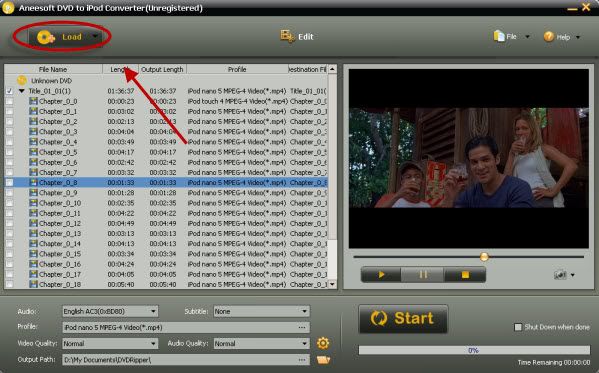
Run DVD to iPod Converter in the following main window, click "Load..." button on the toolbar to add videos that you want to convert to iPod video formats.


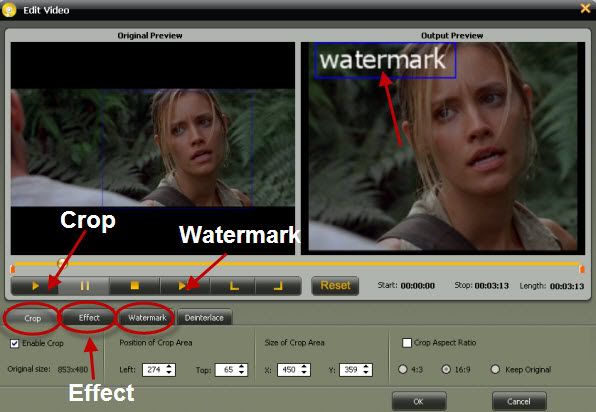
Step 3: Edit your video file (optional): trim, crop, effect, watermark and deinterlace
Trim Video:
This Aneesoft DVD to iPod Converter allows you to trim your video, so you can capture your favorite video clips. Select the video you want to edit, then click the "Edit" button on the top. An Edit window will be prompted. Click the Start Point and End Point to keep your favourite parts of video in Aneesoft DVD to iPod Converter.

Crop Video:
To watch your movies in full screen, you may crop videos to remove the black edges around your video with this DVD to iPod Converter. Click "Crop" tab to open the Crop Video window, then check the "Enable Crop" option box. There are two methods available to crop your video: crop by a adjusting the crop frame and crop by setting the crop values. After you select an output aspect ratio and finish the crop, you can preview the final visual effect on the right "Output Preview" in real-time.

Set Effect:
If you want to adjust the video effect of your movie, you can click the "Effect" tab and then check "Enable Effect" option box. Drag each effect adjustment slider to set the video brightness and contrast. You can also choose a special effect from Effect drop-down list to apply to your movie.

Add Watermark:
If you want to add watermark on your video, you can click "Watermark" tab and then check "Enable Effect" option box. You may add Text or Image watermark onto your video. If you want to add Text watermark for your video, click the Color or Font button to set the color and font your text. Drag and drop the text to anywhere you want. If you want to add image watermark, just check the Image option and select the image you want to add as watermark.


Step 4: Output Setup
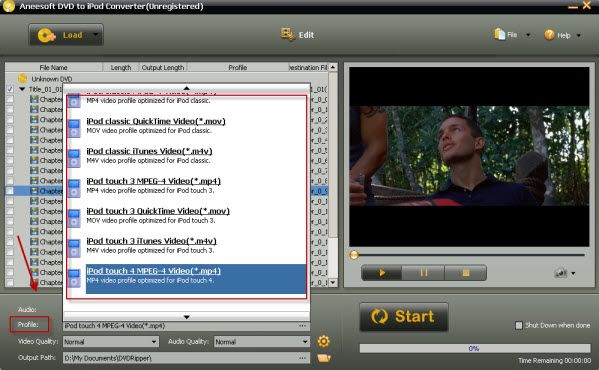
Choose the most suitable output settings you want.


Step 5: Start rpping and converting DVD to iPod video
Finally, click the big "Start" button to start converting DVD to iPod video. If you're using the evaluation version of Aneesoft DVD to iPod Converter, it will only convert the first five minutes of your video. Please purchase full version of Aneesoft DVD to iPod Converter to remove the limitation.

Read more...

Monday, September 20, 2010

How to convert video and edit movie to iPod touch for MAC

The 4th-Gen iPod touch arrives on Sep.1 with many new features that bring it even closer to the iPhone 4. For starters, there are front and rear cameras that let you make FaceTime video calls over a Wi-Fi connection. Moreover, there's a sweet high-resolution 3.5-inch Retina display that nearly matches the screen on the iPhone 4.


But a lot of friends will meet some troubles when running their new iPod Touch, expecially for those who are not familiar to any of the devices by Apple at all. The biggest challenge that they faced may be to figure out how to convert videos to MP4 Format so they can run on their iPod touch. Ok, if you have many video files ready for iPod Touch on your MAC computer, but have no idea on how to transfer them to the handset, this page will help. You'll be able to bring your movies anywhere and have fun at any time, only after four simple steps.

Things you'll need
1. Aneesoft video converter for MAC (Free for download trial version)
2. Your iPod touch
3. Video files

Step1. Download & install Aneesoft Video Converter Pro for MAC
Head over to Aneesoft homepage and download the Video Converter Pro for MAC program, next step is to install the program on MAC. That software can help you convert video to WMV/ AVI/ MOV/ MP4/ FLV/ MPEG and iPad, iPhone 4, iPod, PSP, Apple TV and more easily.
Notice: If you are using Windows OS and want to convert video to iPod, you can refer to Aneesoft video converter Pro .

Step2. Run the Aneesoft Video Converter Pro for MAC and add videos
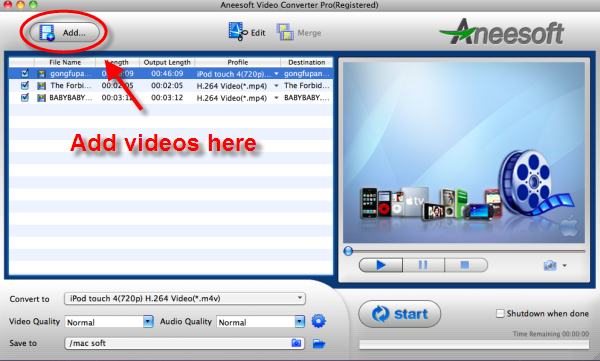
Now run the MAC Video Converter Pro and click the big button "Add..." to add videos from your hard disk, you may add as many videos as you want to convert. Only the titles you checked will be converted.


Step3. Set output setting
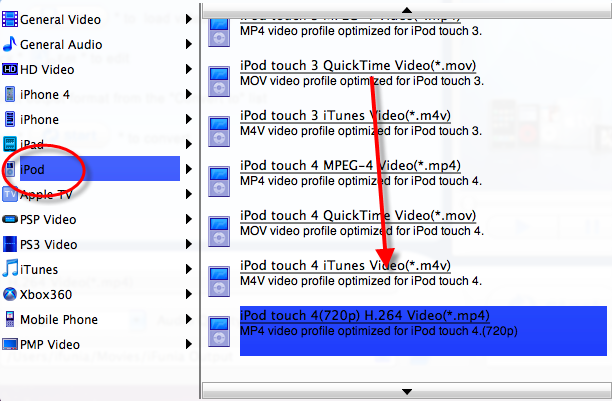
Click the "Convert to" to select iPod format from the drop-down list. This Video Converter Pro for MAC provides lots of profiles sorted by various popular devices, You can easily find the right format you want.


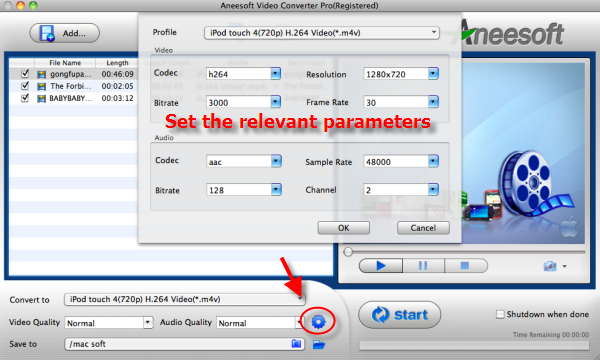
You can also adjust the professional settings like resolution, bit rate, codec to optimize the output quality for your device.


Step4. Start to convert Videos on Mac
After choosing the format, click "Start" button to start the conversion. The multi-threading and batch processing ensures you the super high conversion speed even if you convert multiple video files at the same time.

Tips& Tricks
Tip1: Edit & merge videos: trim, crop, add effect, add watermark. With Aneesoft Video Converter Pro for Mac, you may set movie brightness, contrast, saturation, apply special effects and even add watermark to personalize your video clips before conversion. You also can merge multiple video into one for output.
Tip2: You can preview the status of converting from the progress bar and set the actions after conversion. You can also take snapshot and save them as jpg, bmp file while preview. Tip3: HD video converting, can convert HD video between HD AVI, HD MPEG-4 AVC, HD QuickTime MOV, HD WMV, HD FLV, HD MPEG-2, HD ASF, etc.
Tip4: Supports Mac OS X 10.5 Leopard or Mac OS X 10.6 Snow Leopard on iMac, Mac Pro, MacBook, MacBook Pro, MacBook Air, etc.

Read more...

Tuesday, September 14, 2010

Top 10 Free Games for the iPod Touch

There are plenty of great games for the iPod Touch and many of them are free. Here's my top ten list of the best free games developed for the iPod Touch.

Free and Awesome Games

After spending so much on an iPod Touch, why would you want to spend extra money on games? Well, you don't have to because the iPod Touch has plenty of awesome games for free. Here are my top ten, in no particular order.

Pac-Man Lite

Pac-ManYes, you read that correctly. Pac-Man for the iPod Touch. It even looks like the original arcade version of Pac-Man, complete with a virtual control stick for you to toggle. No wonder it looks so retro, it is made by Namco. Check it out for some classic gaming action! Available for both iPod Touch and iPhone.

Jelly Car

The name implies it all. You must drive a car, of jelly-like consistency, through a jelly world and make it to the exit. The purposefully bad graphics, which look like something a 10 year old drew, are actually more endearing than annoying. Jelly Car is available for both iPod Touch and iPhone.

Tap Tap Revenge 2

A rhythm game in a similar vein to Guitar Hero. Tap through the beats of more than 40 free songs. Tap Tap Revenge 2 is available for both iPod Touch and iPhone.

iBowl

Go bowling with your iPod Touch. If you like bowling this game allows you to bowl at anytime and anyplace, and you don't even need proper footwear. Check out the complete iBowl review to find out more. Available for both iPod Touch and iPhone.

Cannon Challenge

Developed by the Discovery Channel, shoot cannons at targets and try to hit them. It's more fun than it sounds, trust me. Available for both iPod Touch and iPhone.

Labyrinth Lite Edition

Roll a little metal ball through a wooden labyrinth while avoiding holes. Labyrinth Lite is a classic game with 10 levels. The full version of Labryrinth as well as the lite version are both available for both iPod Touch and iPhone.

Lux Touch

A Risk-like strategy game of global domination. Control the blue army and take over the world. This is for all of you out there with a Napoleon complex. Lux Touch is available on both the iPod Touch and iPhone.

Tic Tac Free

Exactly what it sounds like. Tic Tac Toe for your iPod Touch. No one ever out grows this simple game. Tic Tac Free is available for both iPod Touch and iPhone.

Sol Free Solitaire

No game list is complete without Solitaire. It is a Mac classic and now it is available for the iPod Touch. Go ahead and enjoy your alone time. Available for both iPod Touch and iPhone.

Brain Toot Free

It's time to put on your thinking cap and see how smart you really are. With four different games to train your brain's memory, visual, thinking and math skills you'll learn and have fun. Available for both iPod Touch and iPhone.
All games are available from the App store inside of the iTunes store. For more games, check out the latest iPod Touch and iPhone games here on Bright Hub.

How to convert videos & DVD movies for the iPod touch

iPod supported video, audio and music format
How to convert DVD to iPod touch
How to convert AVI to iPod Touch
How to convert video to iPod touch


Read more...

Monday, September 13, 2010

iPod supported video format & audio format

Quick Links

Apple unveiled the 4th generation iPod touch on September 1, 2010. It adds an improved chip, a better display, and two cameras. So, most iPod touch users like to play music and watch movies on this beautiful handset. However, there is a minor issue here; the device does not support all formats of videos. And according to iPod touch's official page, there are many technical specifications as follows for iPod touch video file format & iPad touch music format.


iPod touch video/movie format

  • H.264 video, up to 1.5 Mbps, 640 by 480 pixels, 30 frames per second, Low-Complexity version of the H.264 Baseline Profile with AAC-LC audio up to 160 Kbps, 48kHz, stereo audio in .m4v, .mp4, and .mov file formats
  • H.264 video, up to 2.5 Mbps, 640 by 480 pixels, 30 frames per second, Baseline Profile up to Level 3.0 with AAC-LC audio up to 160 Kbps, 48kHz, stereo audio in .m4v, .mp4, and .mov file formats
  • MPEG-4 video, up to 2.5 Mbps, 640 by 480 pixels, 30 frames per second, Simple Profile with AAC-LC audio up to 160 Kbps per channel, 48kHz, stereo audio in .m4v, .mp4, and .mov file formats

iPod touch audio/music format

  • Frequency response: 20Hz to 20,000Hz
  • Audio formats supported: AAC (8 to 320 Kbps), Protected AAC (from iTunes Store), HE-AAC, MP3 (8 to 320 Kbps), MP3 VBR, Audible (formats 2, 3, 4, Audible Enhanced Audio, AAX, and AAX+), Apple Lossless, AIFF, and WAV
  • User-configurable maximum volume limit

iPod touch TV Format

  • Support for 1024 by 768 pixels with Dock Connector to VGA Adapter; 576p and 480p with Apple Component AV Cable; 576i and 480i with Apple Composite AV Cable


iPod touch video/movie format

  • H.264 video, up to 1.5 Mbps, 640 by 480 pixels, 30 frames per second, Low-Complexity version of the H.264 Baseline Profile with AAC-LC audio up to 160 Kbps, 48kHz, stereo audio in .m4v, .mp4, and .mov file formats
  • H.264 video, up to 2.5 Mbps, 640 by 480 pixels, 30 frames per second, Baseline Profile up to Level 3.0 with AAC-LC audio up to 160 Kbps, 48kHz, stereo audio in .m4v, .mp4, and .mov file formats
  • MPEG-4 video, up to 2.5 Mbps, 640 by 480 pixels, 30 frames per second, Simple Profile with AAC-LC audio up to 160 Kbps per channel, 48kHz, stereo audio in .m4v, .mp4, and .mov file formats

iPod touch audio/music format

  • Frequency response: 20Hz to 20,000Hz
  • Audio formats supported: AAC (8 to 320 Kbps), Protected AAC (from iTunes Store), HE-AAC, MP3 (8 to 320 Kbps), MP3 VBR, Audible (formats 2, 3, 4, Audible Enhanced Audio, AAX, and AAX+), Apple Lossless, AIFF, and WAV
  • User-configurable maximum volume limit

iPod touch TV Format

  • Support for 1024 by 768 pixels with Dock Connector to VGA Adapter; 576p and 480p with Apple Component AV Cable; 576i and 480i with Apple Composite AV Cable


Convert videos to iPod touch

Hopefully you now have a clear idea of which videos you can play on the iPod touch. But what if this rules out a majority of the videos in your collection because of format-incompatibility? If the video files you want to view are in a format that is not supported by iPod touch, you may be able to convert them into iPod touch video/audio format.

If you have got an iPod touch and would like to convert videos to iPod touch supported video format, you may try Aneesoft Video Converter Pro.

If you would like to watch your DVD movies on your iPod touch, just get Aneesoft DVD Ripper Pro to rip/convert DVD movies for iPod touch.

Now get Video Converter Suite and save 35%! This Video Converter Suite includes two programs: Aneesoft Video Converter Pro and Aneesoft DVD Ripper Pro.

Read more...